
Accessibility Toolbar & WCAG Helper (EAA / WCAG 2.1 AA). Accessibility Toolbar & WCAG Helper adds a self-hosted accessibility widget to your storefront, applies optional non-destructive WCAG 2.1 AA improvements, generates an Accessibility Statement page and includes a basic back-office WCAG audit. It helps you address the European Accessibility Act (EAA). No third-party service, no coding, no theme edits.
Accessibility Toolbar & WCAG Helper adds a self-hosted accessibility widget to your storefront, applies optional non-destructive WCAG 2.1 AA improvements, generates an Accessibility Statement page and includes a basic back-office WCAG audit. It helps you address the European Accessibility Act (EAA). No third-party service, no coding, no theme edits.
1. Installation
- In the back office go to Modules → Module Manager → Upload a module and select the module ZIP.
- Once installed, click Configure to open the settings screen.
.local, .test, localhost) are always allowed. When a new version is available it is shown right inside the module.2. Configuration: step by step
The Configure screen has three tabs, Settings, Accessibility statement and WCAG audit. The Settings tab is split into the sections below; each one can be turned on independently.
Widget
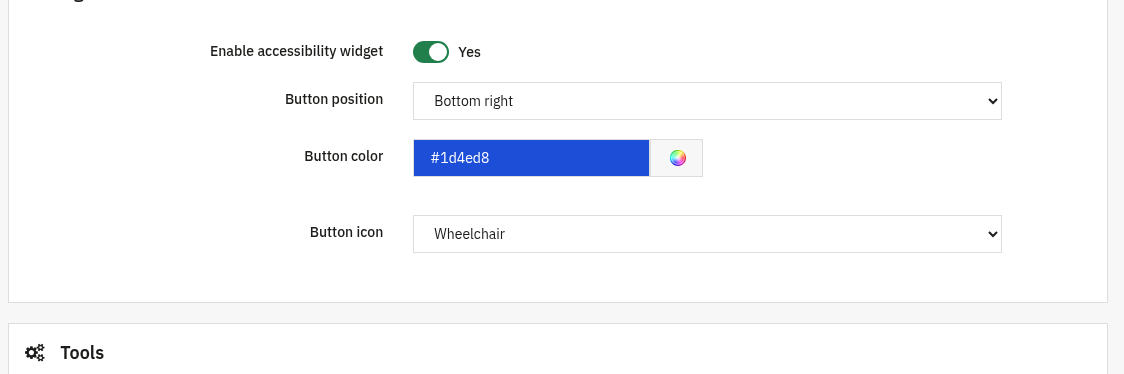
The accessibility button shown on every storefront page. Turn it on and choose how it looks.
- Enable accessibility widget: the on/off switch for the front-office toolbar.
- Button position: Bottom right, Bottom left, Top right, Top left, Middle right or Middle left.
- Button color: the colour of the floating button.
- Button icon: Wheelchair, Person, Eye or Contrast.
Tools
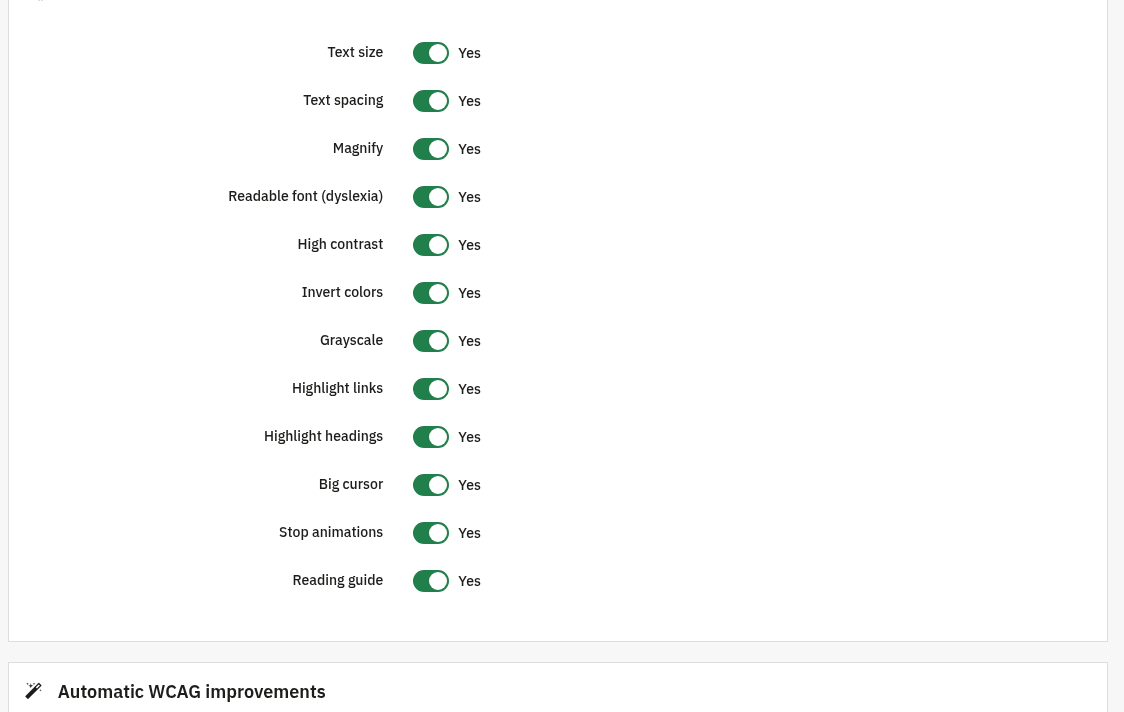
Pick which accessibility tools appear inside the widget. Each is an independent on/off switch.
- Text size: let visitors enlarge the text.
- Text spacing: increase spacing between letters, words and lines.
- Magnify: a magnifier for the content under the cursor.
- Readable font (dyslexia): switch to a dyslexia-friendly typeface.
- High contrast: boost contrast for low-vision readers.
- Invert colors: invert the page colours.
- Grayscale: remove colour from the page.
- Highlight links: make links stand out.
- Highlight headings: make headings stand out.
- Big cursor: show a larger mouse cursor.
- Stop animations: pause motion and animations.
- Reading guide: a horizontal ruler that follows the cursor.
Automatic WCAG improvements non-destructive
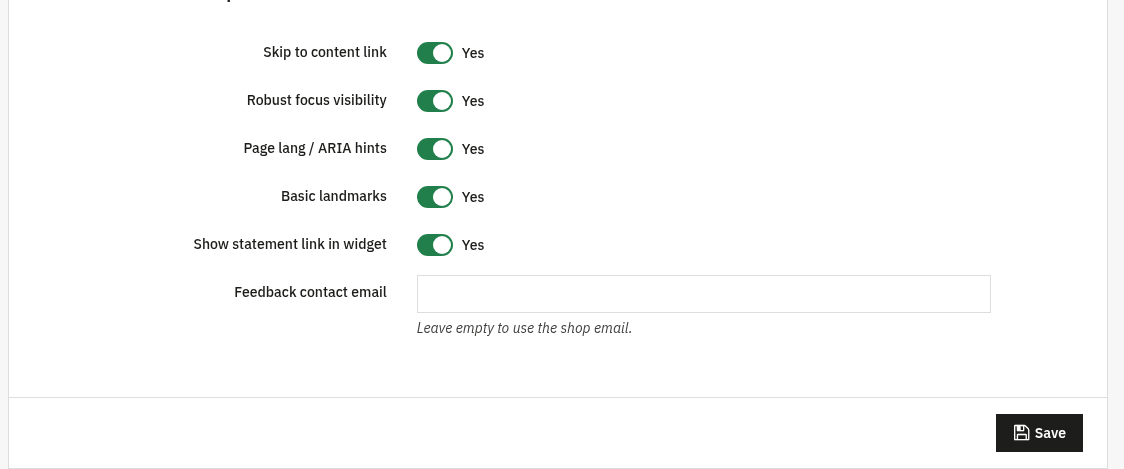
Optional behind-the-scenes fixes that improve accessibility without altering your theme or content. Also controls the generated Accessibility Statement.
- Skip to content link: add a keyboard "skip to content" link at the top of the page.
- Robust focus visibility: make the keyboard focus outline clearly visible.
- Page lang / ARIA hints: add the page language and basic ARIA hints.
- Basic landmarks: add basic landmark roles to help screen readers.
- Show statement link in widget: display a link to your Accessibility Statement page inside the widget.
- Feedback contact email: the address shown for accessibility feedback. Leave empty to use the shop email.
Use the Accessibility statement tab to edit the multilingual statement (template referencing the EAA, EN 301 549 and WCAG 2.1 AA; leave a language empty for the localized default), and the WCAG audit tab to run the basic back-office audit.
3. Check that it works
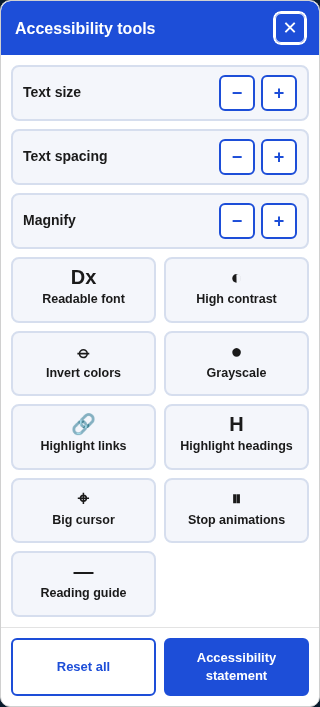
- Open your storefront and click the accessibility button, the toolbar should open.
- Toggle a tool such as Text size or High contrast and confirm the page changes.
- Open the generated Accessibility Statement page (linked from the widget when enabled).
- In the back office open the WCAG audit tab and run the audit to see the report.
4. FAQ
Is the widget self-hosted?
Yes. All scripts and styles are served from your own shop, no third-party service and no external calls for the toolbar.
Does it guarantee legal compliance?
No tool can. It helps you address the EAA and WCAG 2.1 AA, but full conformance requires manual review. The back-office audit is a help tool, not a complete validator.
Will it break my theme?
No. The automatic WCAG improvements are non-destructive, they add accessibility helpers without changing your content or layout.
Do I need to edit my theme?
No. The module works through standard hooks and is compatible with any theme.