
Smart FAQ. Smart FAQ lets you build flexible FAQ groups and attach them anywhere: products, categories, brands, the home page, the footer, CMS pages or a standalone FAQ page. Each question can collect ratings, helpful votes and customer comments, and the module outputs schema.org FAQPage structured data so Google can show your answers as rich snippets. No coding, no theme edits.
Smart FAQ lets you build flexible FAQ groups and attach them anywhere: products, categories, brands, the home page, the footer, CMS pages or a standalone FAQ page. Each question can collect ratings, helpful votes and customer comments, and the module outputs schema.org FAQPage structured data so Google can show your answers as rich snippets. No coding, no theme edits.
1. Installation
- In the back office go to Modules → Module Manager → Upload a module and select the module ZIP.
- Once installed, open the new Smart FAQ menu: it has FAQ groups, User questions and Settings.
.local, .test, localhost) work out of the box.2. Configuration: step by step
Open Smart FAQ → Settings for the global options, then build your content under FAQ groups and review incoming User questions.
Smart FAQ settings
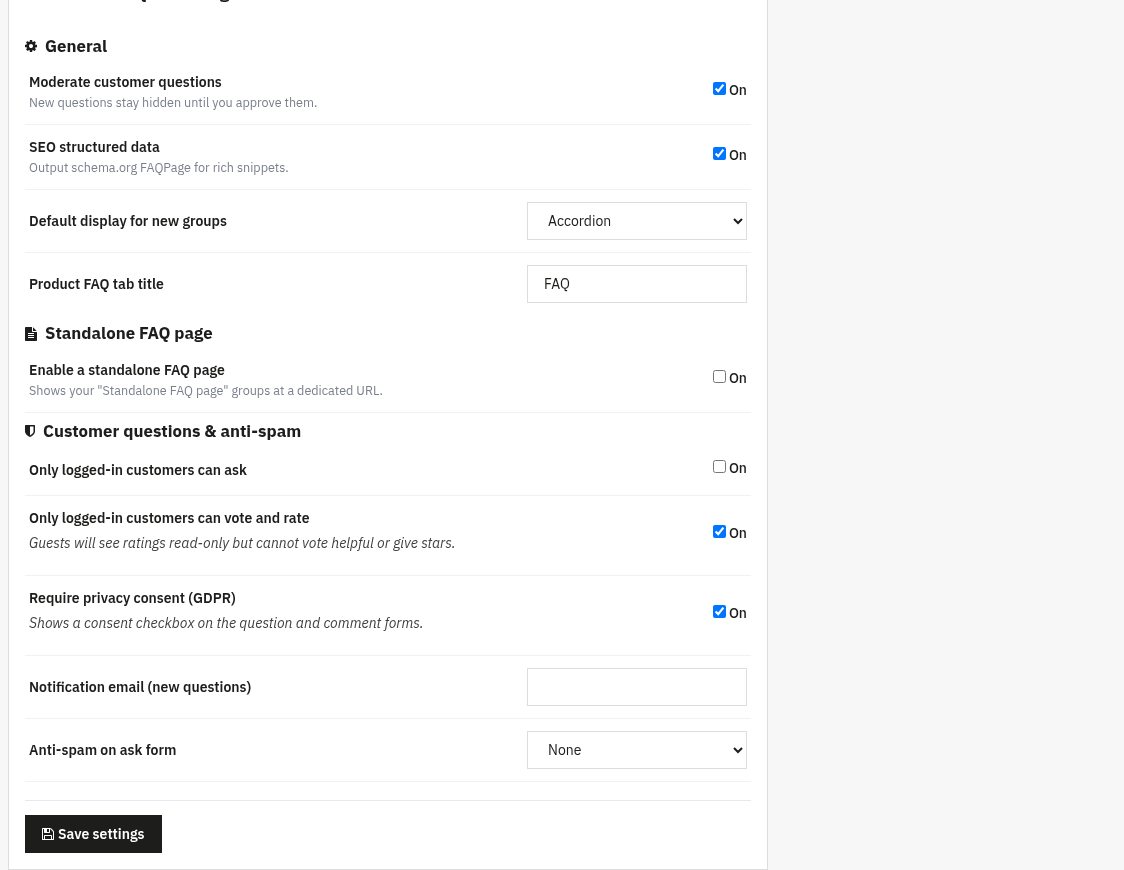
The Settings screen holds the store-wide defaults. It is grouped into three sections.
- General
- Moderate customer questions: when on, new questions submitted by customers stay hidden until you approve them.
- SEO structured data: outputs schema.org
FAQPageJSON-LD so your answers can appear as rich snippets in search results. - Default display for new groups: Accordion, Open list or Grid (the layout pre-selected when you create a new group).
- Product FAQ tab title: the label of the FAQ tab on product pages (default
FAQ).
- Standalone FAQ page
- Enable a standalone FAQ page: publishes your "Standalone FAQ page" groups at a dedicated URL.
- Page URL slug: the address of that page (default
faq). It is also reachable via the module controller; reserved words and slugs already used by a CMS page or category are flagged.
- Customer questions & anti-spam
- Only logged-in customers can ask: restricts the "ask a question" form to signed-in customers.
- Only logged-in customers can vote and rate: guests then see ratings read-only but cannot vote helpful or give stars.
- Require privacy consent (GDPR): shows a consent checkbox on the question and comment forms.
- Notification email (new questions): address that receives an alert when a customer submits a question.
- Anti-spam on ask form: None, Simple math (2+4), Browser check (anti-bot) or Google reCAPTCHA. With reCAPTCHA you also enter the site key and secret key.
Creating FAQ groups
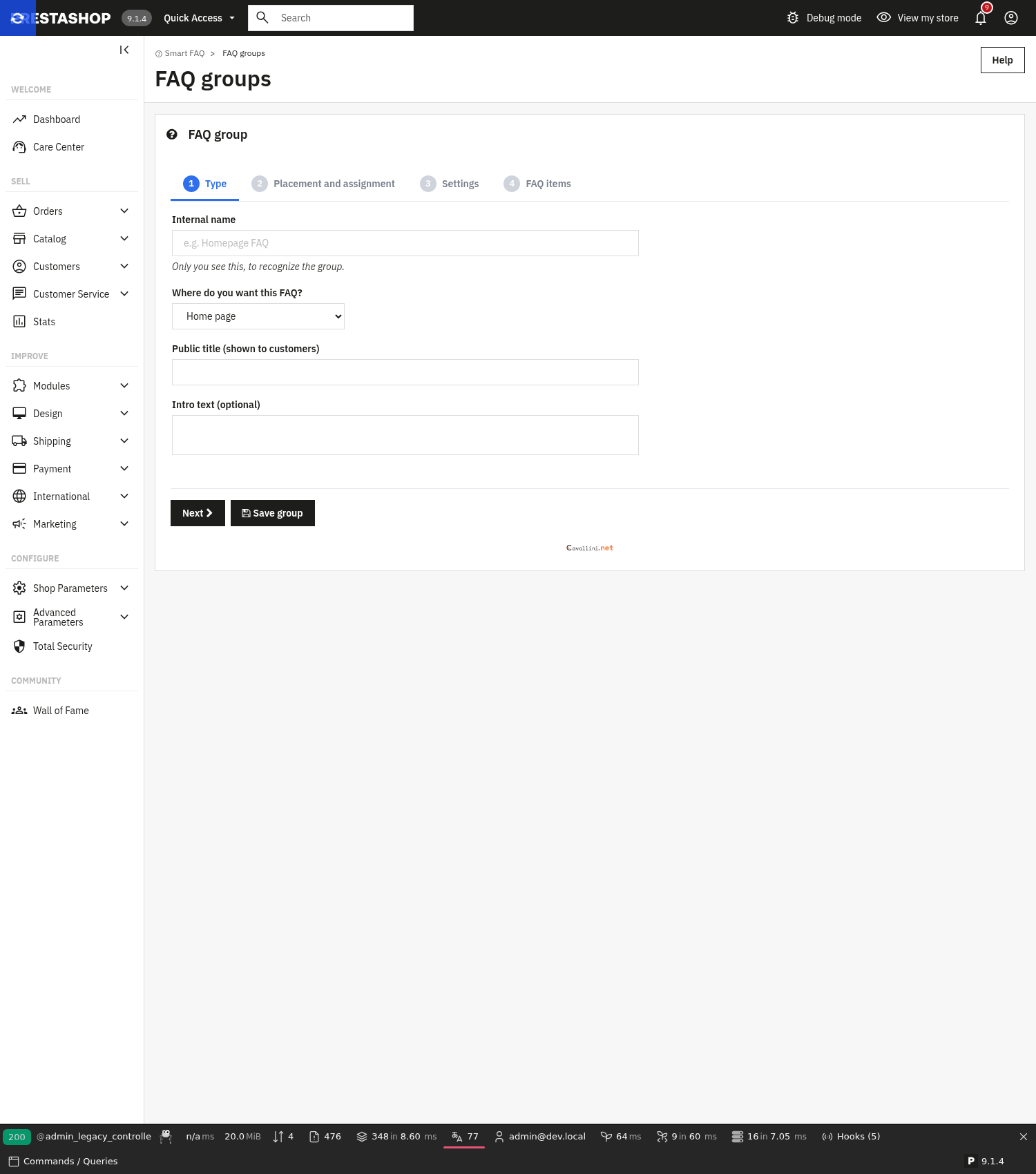
A group is a block of questions plus where and how it appears. Go to Smart FAQ → FAQ groups and click Add new. The wizard has four steps: Type, Placement and assignment, Settings, and FAQ items.
- Type: choose where the group lives: Home page, Product, Category, Brand, CMS page, Footer or Standalone FAQ page, plus an internal name and the public title shown to customers.
- Placement: for each type you pick the exact spot, e.g. on a product it can be the Product tab, Below product or Product additional info; on a category/brand the footer, left or right column; on the home page the main content, top or footer.
- Targets: for product, category, brand or CMS types you assign the specific products, categories, brands or CMS pages the group applies to (products also support global / by category / by brand assignment). On a multistore install you also choose which shops see the group.
- Layout: display as accordion, open list or grid, number of columns, optional search box, group title, "open first item", and an accent colour.
- Interaction: per group you can allow star ratings, helpful votes, comments (inline) and let customers ask new questions.
Adding questions & answers
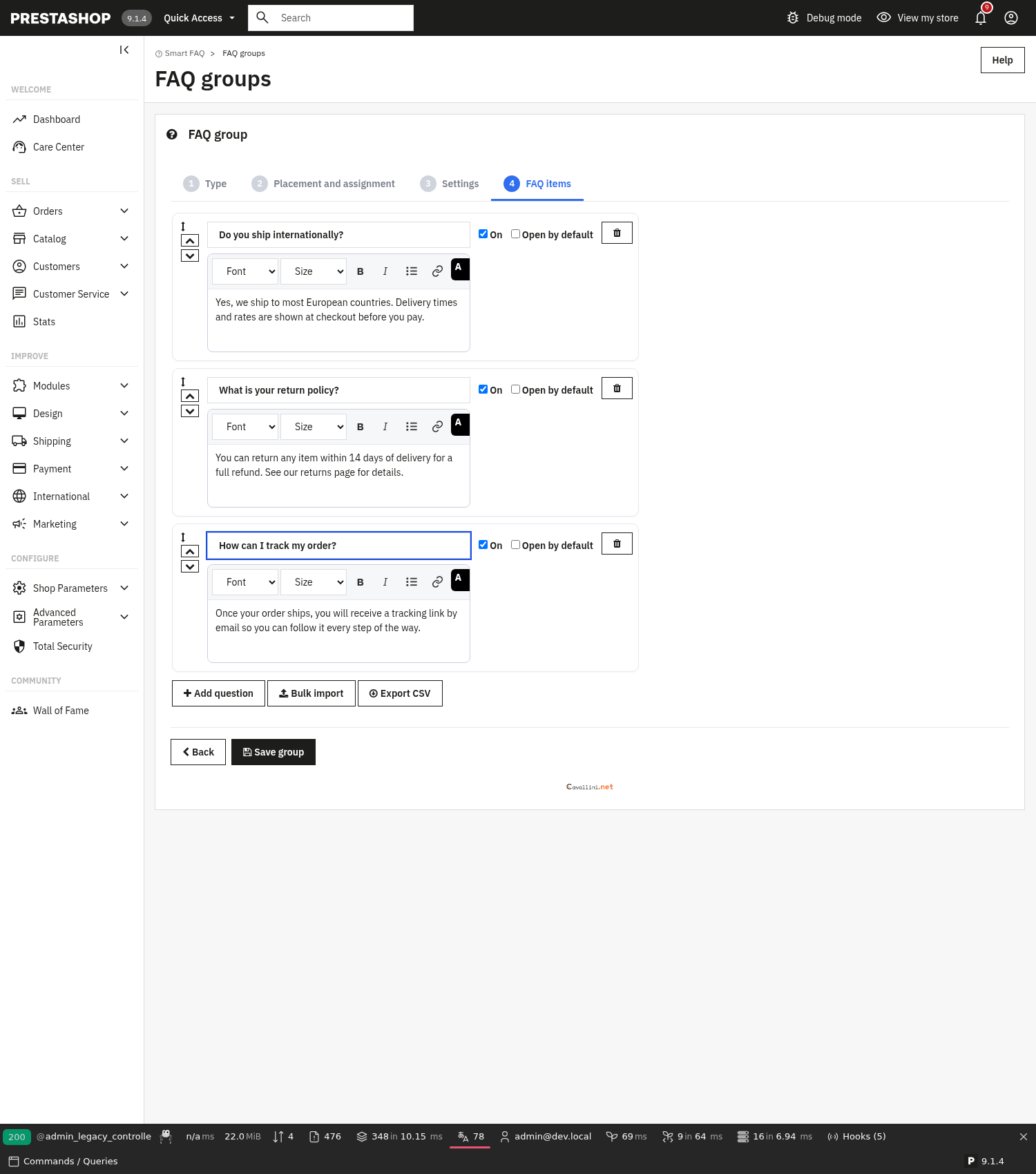
Inside a group, add your questions and answers on the FAQ items step. Each entry has a question, a rich-text answer, an on/off state and a position.
- Ordering: drag and drop or use the up/down arrows to control the order shown to visitors.
- Open by default: mark an item so its answer is already expanded when the page loads, handy for the single most important question in a group.
- Bulk import & export: paste a list of "Question | Answer" lines with Bulk import to add many FAQs at once, or download a group's FAQs as CSV with Export CSV.
- Customer questions: if the group allows it, visitors submit their own questions from the front office. They appear under Smart FAQ → User questions, where you approve, answer and publish them (or they stay hidden until approved, if moderation is on).
- Ratings & comments: stars, helpful votes and comments are collected per question and shown according to the group's settings. Comments can be moderated before they appear.
3. Check that it works
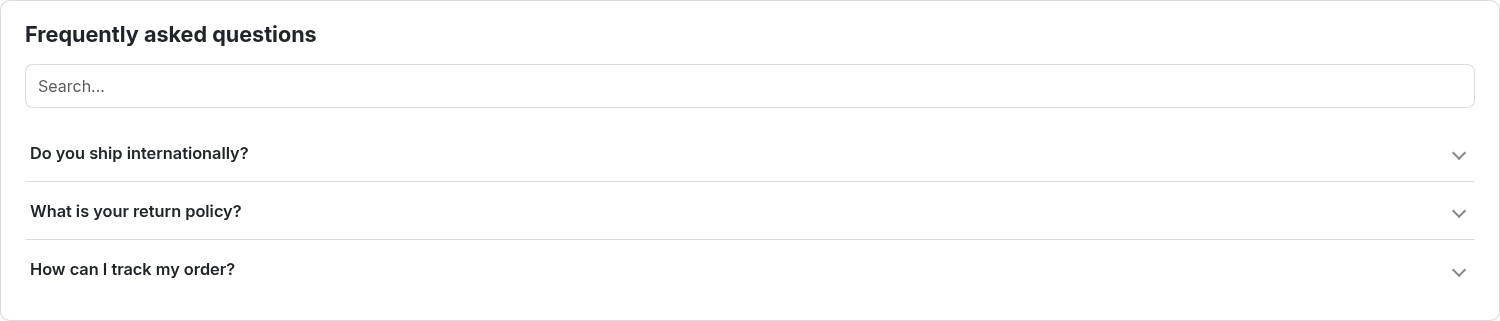
- Create a group of type Home page with a couple of questions, open your shop home page and confirm it renders.
- Attach a Product group to a product, open that product page and check the FAQ tab/block appears.
- If ratings or comments are enabled on the group, rate a question or post a comment from the front office and confirm it is recorded.
- With SEO structured data on, view the page source and look for
<script type="application/ld+json">containingFAQPage, or paste the URL into Google’s Rich Results Test.
4. FAQ
Where can FAQs appear?
On products, categories, brands, CMS pages, the home page, the footer, and on a dedicated standalone FAQ page, each with its own placement options.
Does it add SEO structured data?
Yes. With SEO structured data enabled it outputs schema.org FAQPage JSON-LD so your answers can qualify for rich snippets.
Are ratings and comments optional?
Yes. Ratings, helpful votes, comments and customer questions are switched on per group, so you decide which features each FAQ block uses.
How do I stop spam questions?
Use moderation to approve questions before they show, restrict asking/voting to logged-in customers, and enable an anti-spam method (simple math, browser check or reCAPTCHA) on the ask form.