
GPSR Product Safety - Regulation (EU) 2023/988. GPSR Product Safety makes your store compliant with Regulation (EU) 2023/988. Declare your EU economic operators, assign a manufacturer and responsible person per product, and show safety warnings, usage instructions, hazard pictograms and conformity documents right on the product page. Bulk assignment and configurable defaults keep large catalogues fast to manage. No coding, no theme edits.
GPSR Product Safety makes your store compliant with Regulation (EU) 2023/988. Declare your EU economic operators, assign a manufacturer and responsible person per product, and show safety warnings, usage instructions, hazard pictograms and conformity documents right on the product page. Bulk assignment and configurable defaults keep large catalogues fast to manage. No coding, no theme edits.
1. Installation
- In the back office go to Modules → Module Manager → Upload a module and select the module ZIP.
- Once installed, click Configure to open the setup wizard.
.local, .test, localhost) are always allowed. When a new version is available it is shown right inside the module.2. Configuration: step by step
The Configure screen has three tabs: Economic operators (your GPSR-responsible persons), Bulk assignment (apply them to many products at once) and Settings (toggles, defaults and the front-office block). They all live on one screen. For a single product you can also set (or override) its GPSR data directly from the product edit page.
Settings
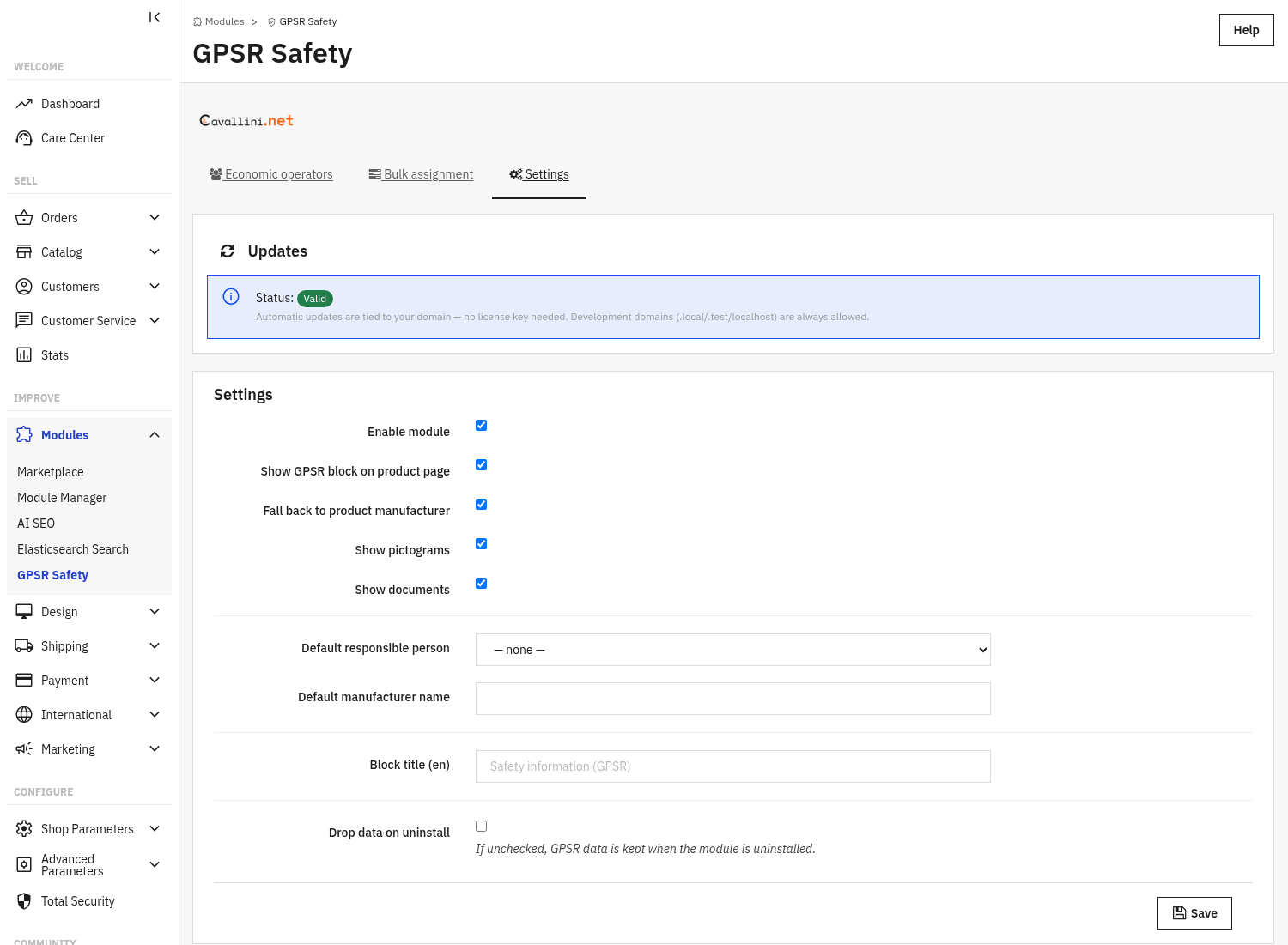
The Settings tab controls what the module does and how the GPSR block looks on the product page. Change the toggles and fields you need, then click Save at the bottom of the panel to apply them.
Master toggles: turn the features on or off.
- Enable module: the on/off switch for the whole module. Nothing is added to your front office until this is enabled.
- Show GPSR block on product page: display the compliance block on the product detail page.
- Show pictograms: display CLP/GHS hazard pictograms.
- Show documents: display the conformity documents attached to a product.
- Fall back to product manufacturer: when a product has no responsible person set, use the product's own manufacturer name automatically.
Economic operators and defaults: declare who is responsible.
- On the Economic operators tab, add each operator (manufacturer, importer, authorised representative or distributor) with name, address, email, phone and website.
- Default responsible person: the shop-wide operator used when a product has none assigned.
- Default manufacturer name: a text fallback used when no person is assigned and the manufacturer fallback is off.
- Block title: the heading shown above the GPSR block, editable per language (e.g. "Safety information (GPSR)").
Bulk assignment: on the dedicated tab you can apply a responsible person and/or a manufacturer name to a whole category or to a list of product IDs in one click, instead of editing products one by one. Leave a field unchanged to keep the current value, or clear it to fall back to the shop default.
Drop data on uninstall: when off (the default), all GPSR data is kept if you uninstall the module; turn it on only if you want everything removed.
Per-product GPSR data product edit page
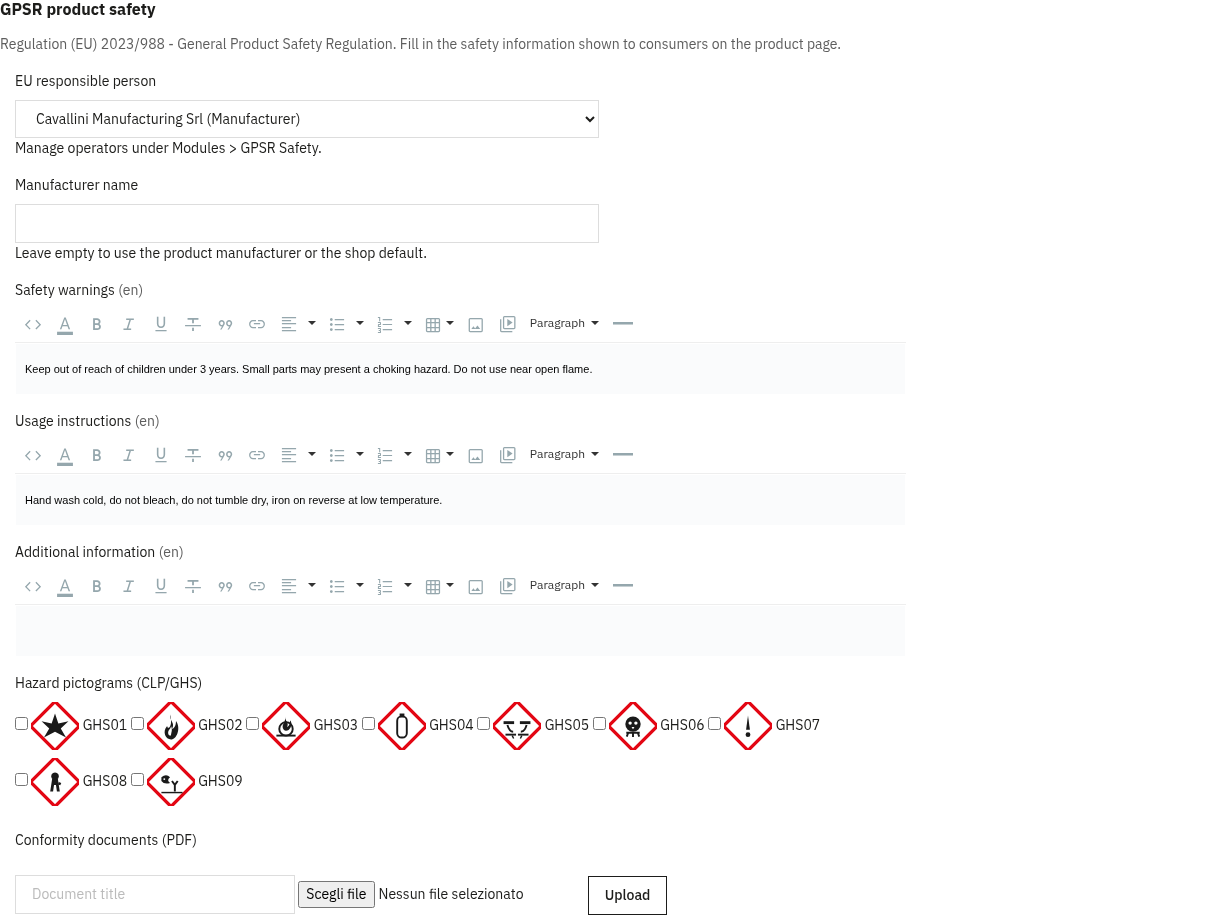
Beyond the shop-wide defaults and bulk assignment, each product has its own GPSR panel. Open the product under Catalog → Products, switch to the Modules tab and click Configure under "GPSR Product Safety" to expand it. Anything set here overrides the shop default and the bulk-assigned value for that product only.
- EU responsible person: pick one of your declared operators, or leave "Use shop default" to inherit the shop-wide default.
- Manufacturer name: override the shop default and the product's own manufacturer for this product only. Leave empty to fall back automatically.
- Safety warnings, Usage instructions, Additional information: multilingual rich-text fields shown on the product page, one set per language.
- Hazard pictograms (CLP/GHS): tick the pictograms that apply to this product (GHS01 to GHS09).
- Conformity documents: upload PDF documents (declaration of conformity, instructions, certificates) with a title; each one becomes a secured download link on the product page.
3. Check that it works
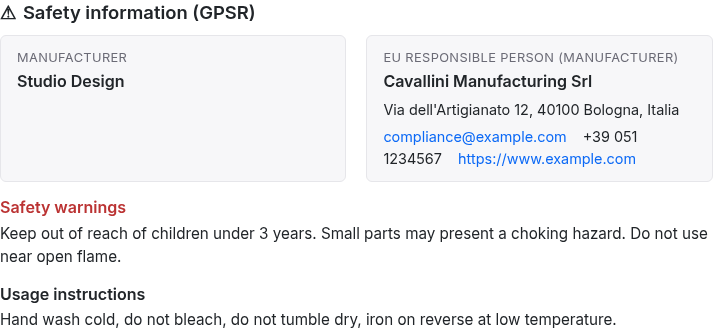
- Open a product that has a responsible person assigned: the GPSR block should appear on the product page with your block title.
- Confirm the manufacturer / responsible person, safety warnings and usage instructions are shown.
- If you enabled pictograms and documents, check the hazard pictograms and the downloadable conformity documents appear.
- For a product with no person set, verify the shop default (or product manufacturer) is used as the fallback.
4. FAQ
Do I have to fill in every product manually?
No. Use the Bulk assignment tab to apply a responsible person and manufacturer to a whole category or a list of products at once, and set shop-wide defaults for the rest.
Can I override the GPSR data for a single product?
Yes. Open the product, go to its Modules tab and click Configure under GPSR Product Safety. The values you set there take priority over the bulk assignment and the shop defaults for that product only.
Do I need to edit my theme?
No. The GPSR block is added through standard hooks and is compatible with any theme.
What happens to my data if I uninstall?
By default your GPSR data is kept. It is only deleted if you explicitly turn on "Drop data on uninstall".
Can I customise the block heading?
Yes. The block title is editable per language in the Settings tab.