
Social Proof & Urgency. Social Proof & Urgency boosts conversions with privacy-first social proof: recent-sales popups (product + city + time, never a name), a live visitor counter, low-stock scarcity badges, sales countdown timers and trending/best-seller badges. Each element is independently configurable and can use real store data or honestly-labelled simulation.
Social Proof & Urgency boosts conversions with privacy-first social proof: recent-sales popups (product + city + time, never a name), a live visitor counter, low-stock scarcity badges, sales countdown timers and trending/best-seller badges. Each element is independently configurable and can use real store data or honestly-labelled simulation.
1. Installation
- In the back office go to Modules → Module Manager → Upload a module and select the module ZIP.
- Once installed, click Configure to open the setup wizard.
.local, .test, localhost) are always allowed. When a new version is available it is shown right inside the module.2. Configuration: step by step
The Configure screen is a single page split into one card per element. Turn on only what you need; every element works on its own. A privacy note at the top reminds you that popups never show a customer name, email or any personal identifier, only product, city/region and a relative time.
General master switch
The on/off switch for the whole module.
- Enable Social Proof: master switch. When off, the module renders nothing on the front office, whatever the individual elements below are set to.

Recent-sales popup
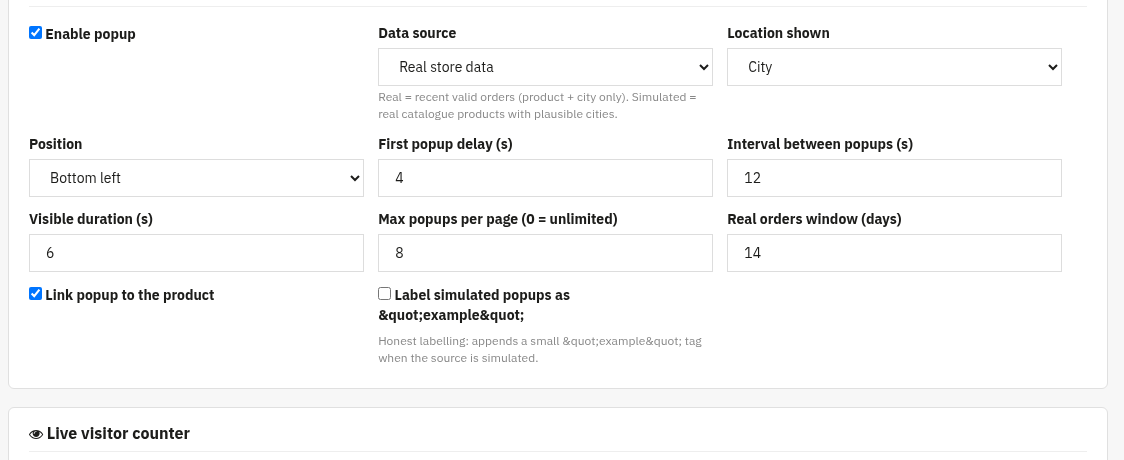
Small popups that show that a product was recently bought (product + city/region + relative time).
- Enable popup: turns this element on.
- Data source: Real store data (recent valid orders, product + city only) or Simulated (real catalogue products with plausible cities).
- Location shown: City or Region/State.
- Position: bottom-left, bottom-right, top-left or top-right.
- First popup delay (s), Interval between popups (s), Visible duration (s) and Max popups per page (0 = unlimited) control timing.
- Real orders window (days): how far back real orders are pulled from.
- Link popup to the product: make the popup clickable through to the product page.
- Label simulated popups as "example": honest labelling that appends a small "example" tag when the source is simulated.
Live visitor counter
Shows how many people are currently looking at a product.
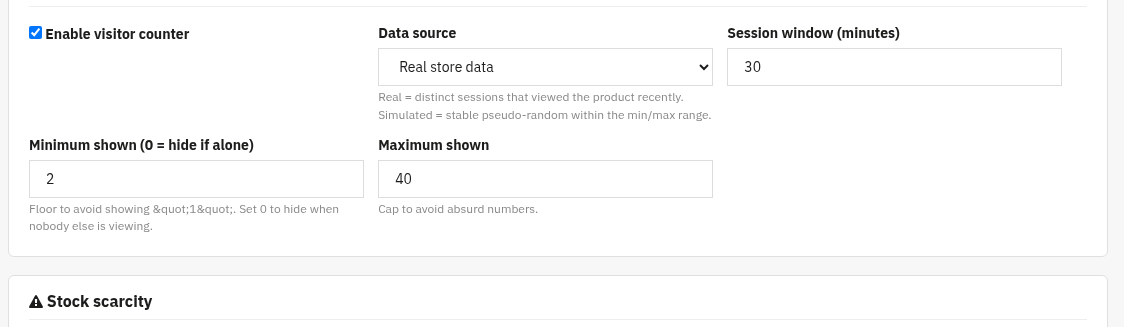
- Enable visitor counter: turns this element on.
- Data source: Real store data (distinct sessions that viewed the product recently) or Simulated (stable pseudo-random within the min/max range).
- Session window (minutes): how recent a session must be to be counted.
- Minimum shown: floor to avoid showing "1"; set 0 to hide when nobody else is viewing.
- Maximum shown: cap to avoid absurd numbers.
Stock scarcity
A "only N left" badge driven by your real available stock.
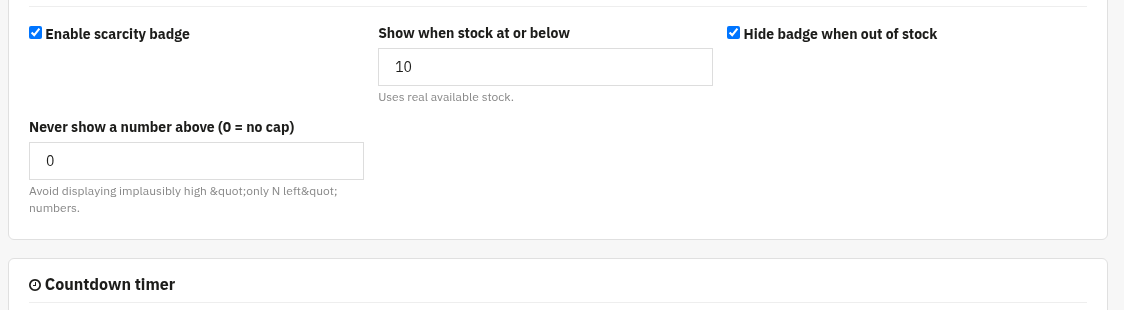
- Enable scarcity badge: turns this element on.
- Show when stock at or below: the threshold at which the badge appears (uses real available stock).
- Hide badge when out of stock: suppress the badge at zero stock.
- Never show a number above: cap (0 = no cap) to avoid implausibly high "only N left" numbers.
Countdown timer
A live countdown to create urgency around a discount or deadline.
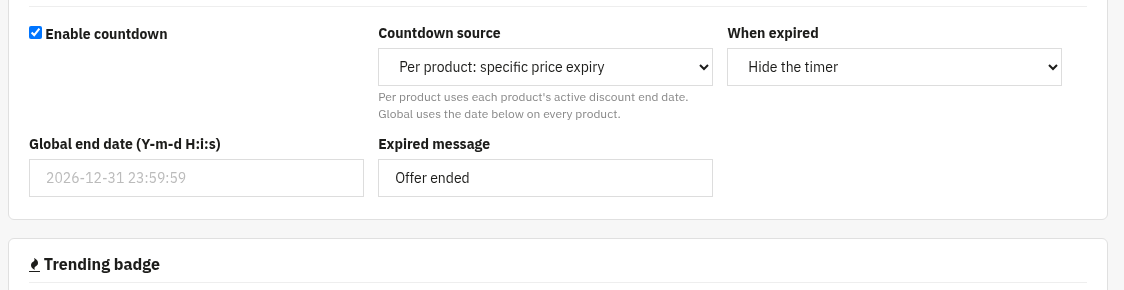
- Enable countdown: turns this element on.
- Countdown source: Per product: specific price expiry (each product's active discount end date) or Global end date (the date below on every product).
- When expired: Hide the timer or Show a message.
- Global end date: used when the source is Global, in
Y-m-d H:i:sformat. - Expired message: the text shown when "Show a message" is chosen.
Trending badge
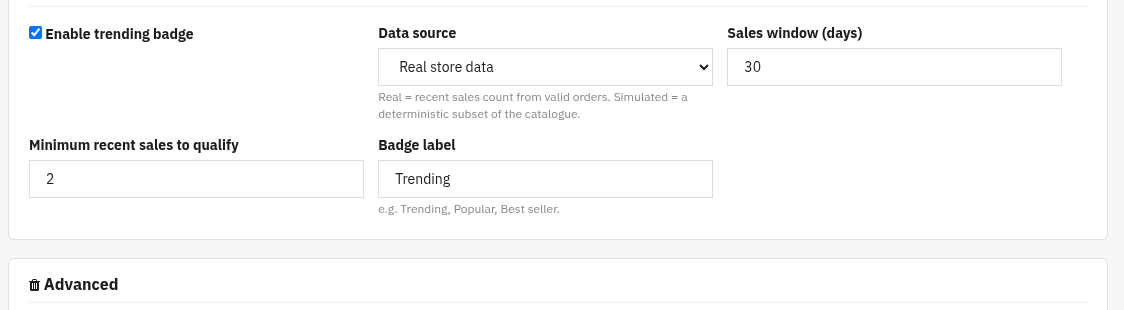
A "trending / best seller" badge for products with recent sales momentum.
- Enable trending badge: turns this element on.
- Data source: Real store data (recent sales count from valid orders) or Simulated (a deterministic subset of the catalogue).
- Sales window (days): the period over which sales are counted.
- Minimum recent sales to qualify: how many sales a product needs before it earns the badge.
- Badge label: the wording, e.g. Trending, Popular, Best seller.
Advanced optional
Housekeeping options.
- Drop the simulated-city table on uninstall: off by default. No customer or order data is ever stored by this module.

3. Check that it works
- With Enable Social Proof on and the popup enabled, open your shop and wait for the first popup to appear in the chosen corner.
- Open a product with low stock, the "only N left" scarcity badge should show at or below your threshold.
- Open a product with an active discount (or set a global end date), the countdown timer should be running.
- Check that recent-sales popups show only product + city/region + relative time, never a customer name.
4. FAQ
Does it show customer names?
No. Popups only ever show product + city/region + relative time. No name, email or any personal identifier is displayed or stored.
Do I need to edit my theme?
No. Social Proof & Urgency works through standard hooks and is compatible with any theme.
What is "simulated" data?
It uses your real catalogue products with plausible cities/numbers, and can be honestly labelled as "example". Switch any element to "Real store data" to use real orders and sessions instead.
Can I enable just one element?
Yes. Each element has its own enable switch; turn on only the ones you want.