
Cookie Consent & Google Consent Mode v2. Cookie Consent shows a GDPR cookie banner with granular categories and wires up Google Consent Mode v2. It can inject GA4, Google Tag Manager and the Meta (Facebook) Pixel only after the matching consent is granted, block known third-party scripts until then, publish a cookie declaration and keep a consent register you can export to CSV. No coding, no theme edits.
Cookie Consent shows a GDPR cookie banner with granular categories and wires up Google Consent Mode v2. It can inject GA4, Google Tag Manager and the Meta (Facebook) Pixel only after the matching consent is granted, block known third-party scripts until then, publish a cookie declaration and keep a consent register you can export to CSV. No coding, no theme edits.
1. Installation
- In the back office go to Modules → Module Manager → Upload a module and select the module ZIP.
- Once installed, click Configure to open the setup wizard.
.local, .test, localhost) are always allowed. When a new version is available it is shown right inside the module.2. Configuration: step by step
The Configure screen has two tabs: Settings (everything below) and Consent register (the accountability log). All the options live on one Settings form, grouped into the sections described here.
Cookie consent settings
Open the Settings tab and fill in the groups in order, then press Save at the bottom.
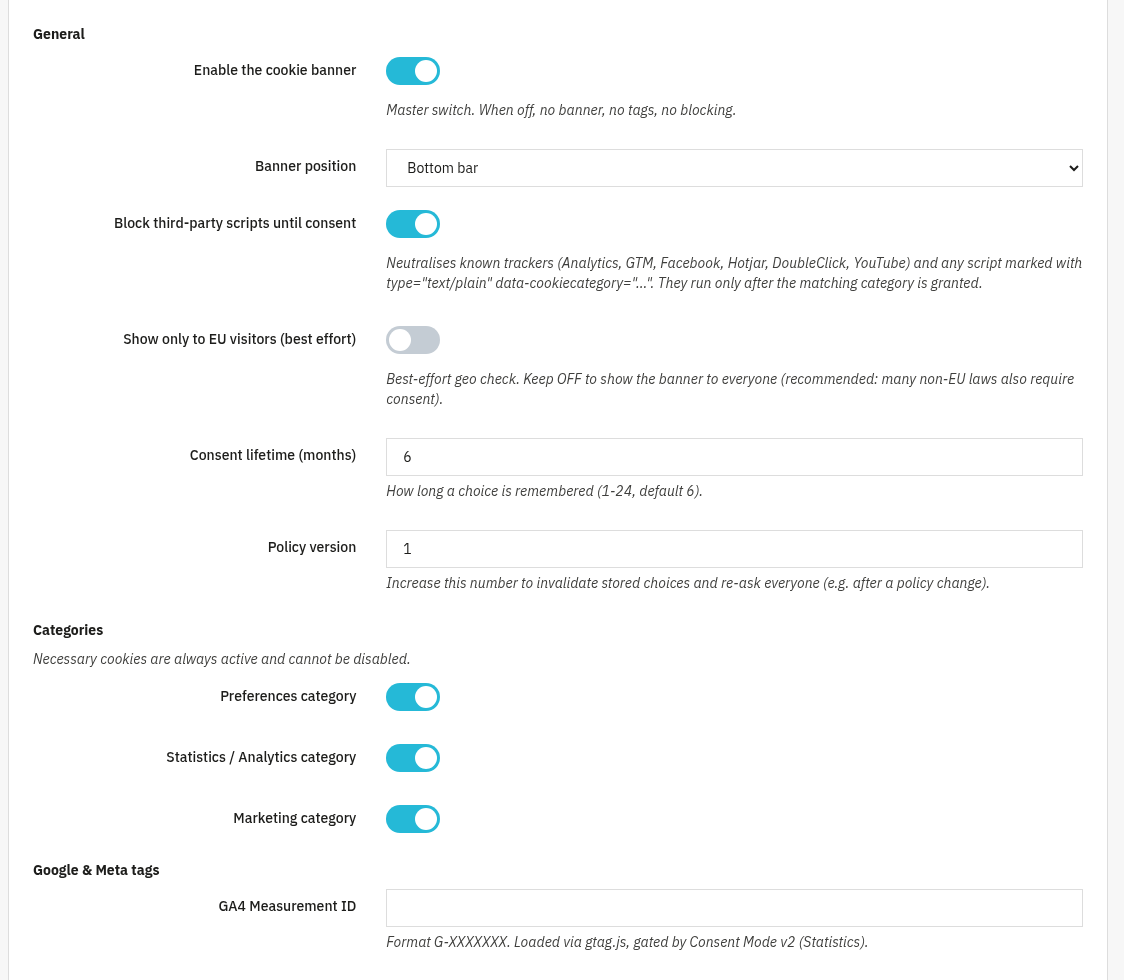
- General: Enable the cookie banner (master switch: when off, no banner, no tags, no blocking), Banner position (Bottom bar or Centered modal), Block third-party scripts until consent (neutralises known trackers, Analytics, GTM, Facebook, Hotjar, DoubleClick, YouTube, and any script marked
type="text/plain" data-cookiecategory="..."), Show only to EU visitors (best effort), Consent lifetime (months) (1–24, default 6) and Policy version (raise it to re-ask everyone after a policy change). - Categories: necessary cookies are always active and cannot be disabled. Turn on the optional categories you use: Preferences, Statistics / Analytics and Marketing.
- Google & Meta tags: GA4 Measurement ID (
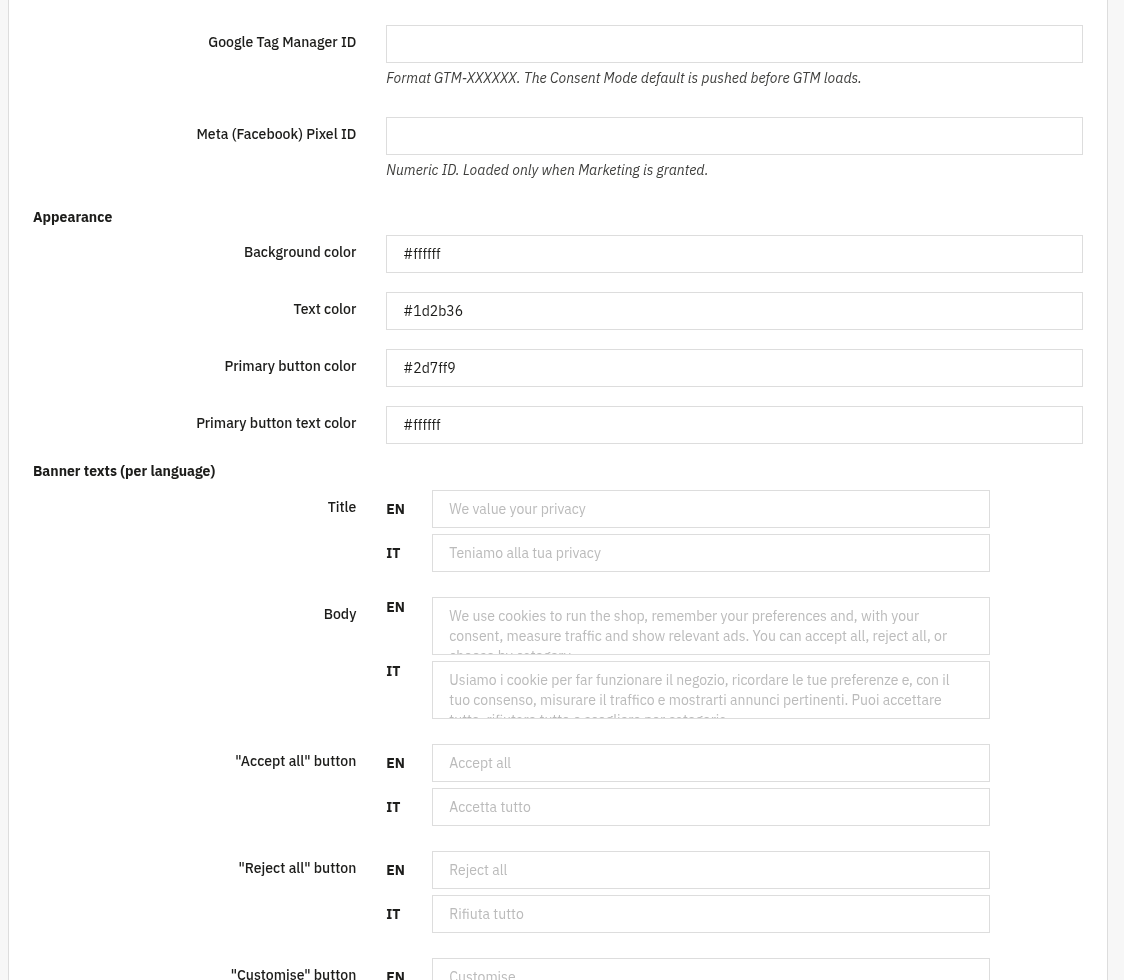
G-XXXXXXX, loaded via gtag.js, gated by Consent Mode v2 / Statistics), Google Tag Manager ID (GTM-XXXXXX, the Consent Mode default is pushed before GTM loads) and Meta (Facebook) Pixel ID (numeric, loaded only when Marketing is granted). - Appearance: Background color, Text color, Primary button color and Primary button text color (hex values such as
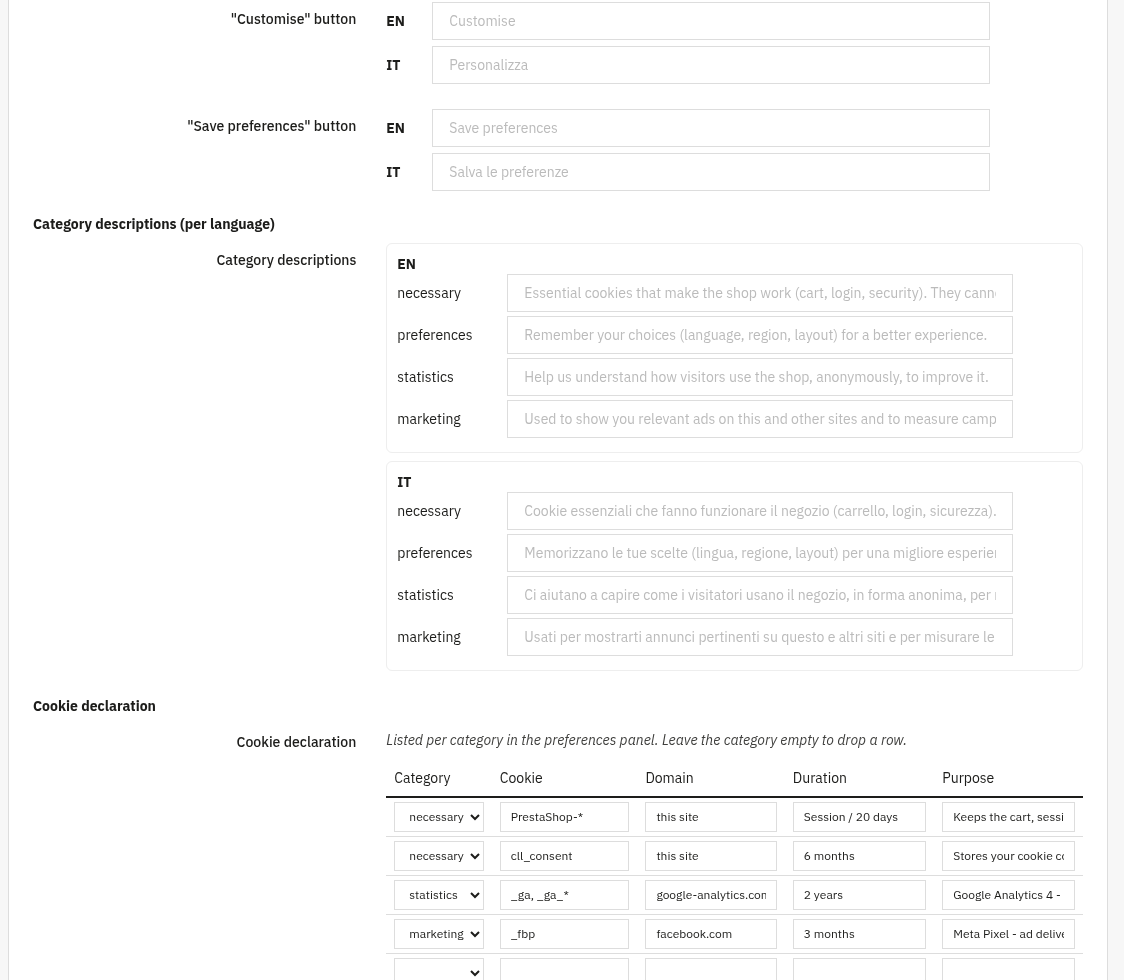
#222222). - Banner texts (per language): override the Title, Body, "Accept all" button, "Reject all" button, "Customise" button and "Save preferences" button for each shop language. Leave a field blank to keep the built-in text.
- Category descriptions (per language): the explanatory text shown under Necessary, Preferences, Statistics and Marketing in the preferences panel.
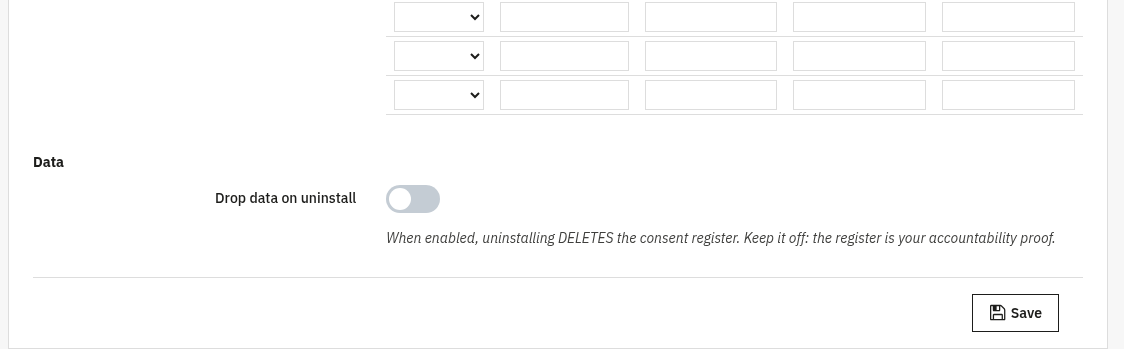
- Cookie declaration: the per-category table listed in the preferences panel: pick a Category and enter the Cookie name, Domain, Duration and Purpose. Leave the category empty to drop a row.
- Data: Drop data on uninstall. Keep it off: the consent register is your accountability proof, so it survives uninstall unless you opt in.
3. Check that it works
- Open your shop in a fresh/incognito window: the banner should appear on the first visit.
- Click Reject all, then check the page source / network tab, GA4 and the Meta Pixel must not load.
- Click Accept all on a new visit and confirm the tags now fire (gtag / GTM / Pixel requests appear).
- Open the Consent register tab: your choices should be recorded as new rows. Use Export CSV to download the log.

4. FAQ
Does it support Google Consent Mode v2?
Yes. The Consent Mode default (everything denied) is pushed before GTM/GA4 load, and consent is updated when the visitor chooses, gating Statistics and Marketing.
Does it block scripts before consent?
Yes. With Block third-party scripts until consent on, known trackers and any script tagged type="text/plain" data-cookiecategory="..." only run after the matching category is granted.
Where is the consent register and what does it store?
On the Consent register tab. It is an accountability log (GDPR art. 7.1), no personal data: the visitor identity is a salted hash and the IP is anonymised. You can filter it and export to CSV.
Do I need to edit my theme?
No. The banner is self-contained and works through standard hooks with any theme.