
Gift Cards. Gift Cards lets shoppers buy a voucher with a custom or preset amount, a recipient, a personal message and a scheduled send date. A unique code is generated on payment, emailed to the recipient with a customizable card design, and redeemed at checkout with server-side partial balance tracking, so any leftover amount stays on the card for next time.
Gift Cards lets shoppers buy a voucher with a custom or preset amount, a recipient, a personal message and a scheduled send date. A unique code is generated on payment, emailed to the recipient with a customizable card design, and redeemed at checkout with server-side partial balance tracking, so any leftover amount stays on the card for next time.
1. Installation
- In the back office go to Modules → Module Manager → Upload a module and select the module ZIP.
- Once installed, click Configure to open the setup wizard.
.local, .test, localhost) are always allowed. When a new version is available it is shown right inside the module.2. Configuration: step by step
The module has three tabs: Issued gift cards (the register of every card with its live balance ledger), Create gift card (issue one manually for a customer), and Settings. Everything below lives under the Settings tab.
Settings
The Settings tab groups every option for how gift cards are sold, secured and presented. Start with the General and Amount policy groups, then fine-tune validity, the card design and data handling.
- Enable gift cards: the master switch for purchase and redemption. Nothing happens on the front office until this is on.
- Email a confirmation to the buyer: also notify the person who paid, in addition to the recipient.
- Allow partial redemption: when on, an order smaller than the card value leaves the remaining balance on the card for future use (tracked server-side).
- Amount mode: choose Free amount within a range or Preset amounts only.
- Minimum / Maximum amount: the allowed range in range mode (set the maximum to 0 for no upper limit).
- Preset amounts: used in preset mode; comma separated, e.g.
25,50,100,150.
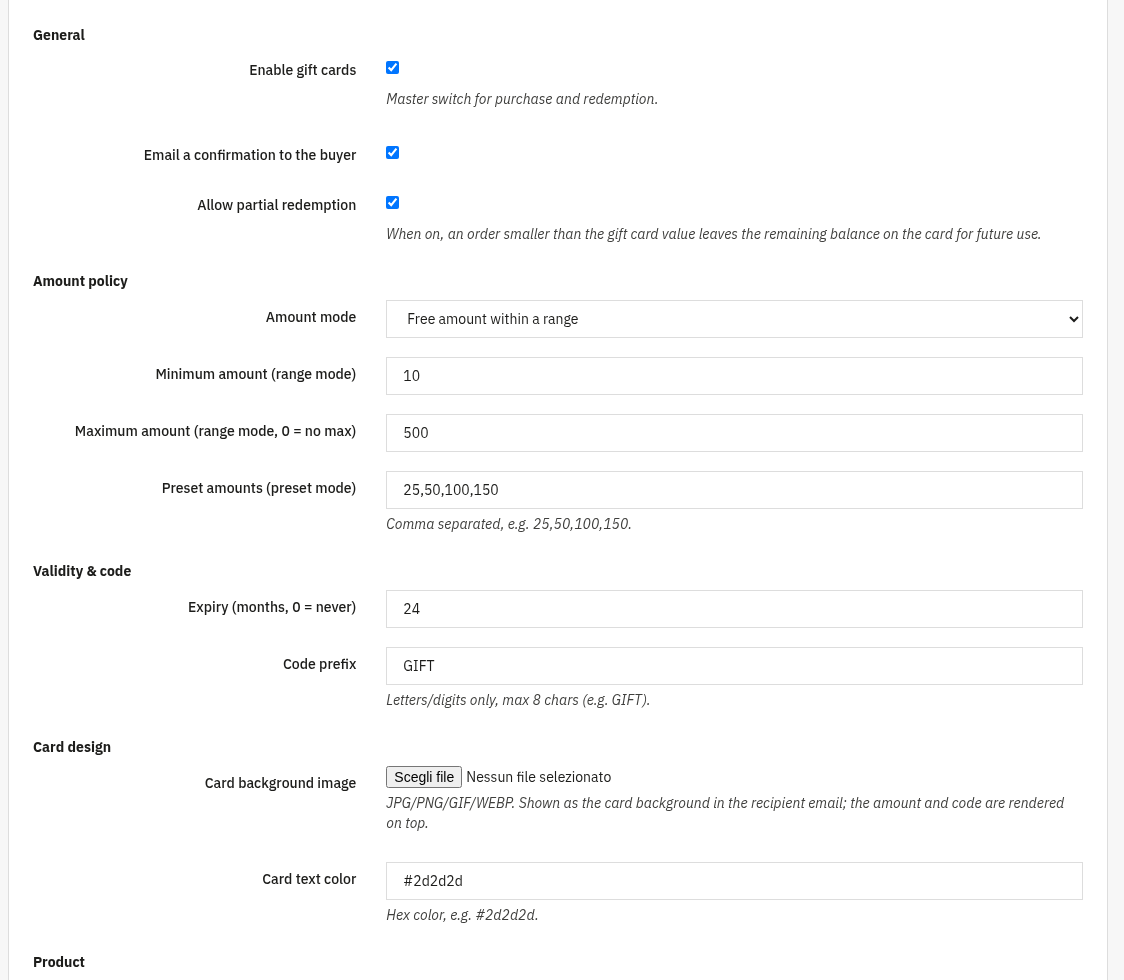
The lower part of the form covers how long a card stays valid, how its code looks, the card artwork sent to the recipient, the catalogue product and data handling.
- Expiry (months): how long a card remains usable; set
0for no expiry. - Code prefix: letters/digits only, up to 8 characters (e.g.
GIFT), prepended to every generated code. - Card background image: JPG/PNG/GIF/WEBP shown as the background in the recipient email; the amount and code are rendered on top.
- Card text color: hex colour for the text drawn on the card, e.g.
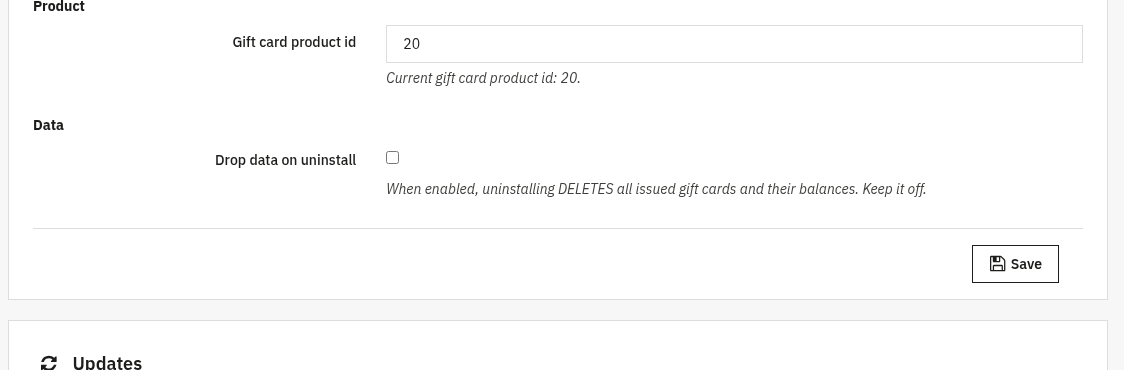
#2d2d2d. - Gift card product id: the catalogue product customers buy to order a gift card (auto-created on install).
- Drop data on uninstall: when enabled, uninstalling deletes all issued cards and balances. Keep it off.
3. Check that it works
- Open the gift card product on your shop, choose an amount and a recipient, and complete a test order, a new card should appear under Issued gift cards once it is paid.
- Check the recipient mailbox: the email should show your card background with the amount and code on top.
- Add a normal product to the cart and enter the code at checkout, the balance should be applied, and with partial redemption on, the leftover should remain on the card.
- Open a card in the register and review the balance ledger to see each movement.
4. FAQ
Can I create a gift card by hand?
Yes. Use the Create gift card tab to issue one for a recipient with an amount, message and optional send date.
What happens to the leftover balance?
With partial redemption on, any amount not spent stays on the card and can be used on a later order.
Do I need to edit my theme?
No. Gift Cards works through standard hooks and the gift card product, so it is compatible with any theme.
Can I resend a card if the email was lost?
Yes. Open the card in the register and use Send to recipient to email it again.