
Advanced Contact Forms. Advanced Contact Forms lets you build multiple advanced contact forms with a custom field builder, department routing, attachments, an autoresponder, a submissions archive, anti-spam and GDPR consent. Each form is built from your own fields and can deliver every message to the right person automatically. No coding, no theme edits.
Advanced Contact Forms lets you build multiple advanced contact forms with a custom field builder, department routing, attachments, an autoresponder, a submissions archive, anti-spam and GDPR consent. Each form is built from your own fields and can deliver every message to the right person automatically. No coding, no theme edits.
1. Installation
- In the back office go to Modules → Module Manager → Upload a module and select the module ZIP.
- Once installed, click Configure to open the module.
.local, .test, localhost) are always allowed. When a new version is available it is shown right inside the module.2. Configuration: step by step
The module is organised in tabs: Forms (the form list and the field builder), Submissions (the archive of received messages) and Settings. The four panels below all live on the Settings tab and apply to every form. Per-form options, labels, recipient, routing rules, autoresponder and success message, are edited inside each form on the Forms tab, while the individual fields are managed with the field builder on the same tab. Received messages, with status and CSV export, are kept under Submissions.
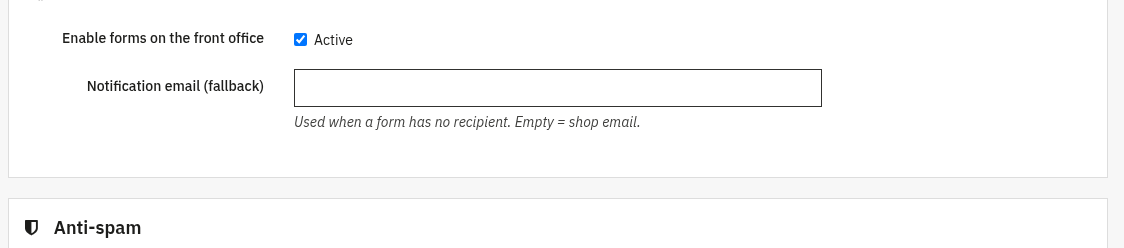
General
Master switch and the fallback inbox used when a form has no recipient of its own.
- Enable forms on the front office: turns the forms on or off site-wide. Nothing is shown on the front office until this is active.
- Notification email (fallback): used when a form has no recipient. Leave empty to use the shop email.
Anti-spam anti-spam
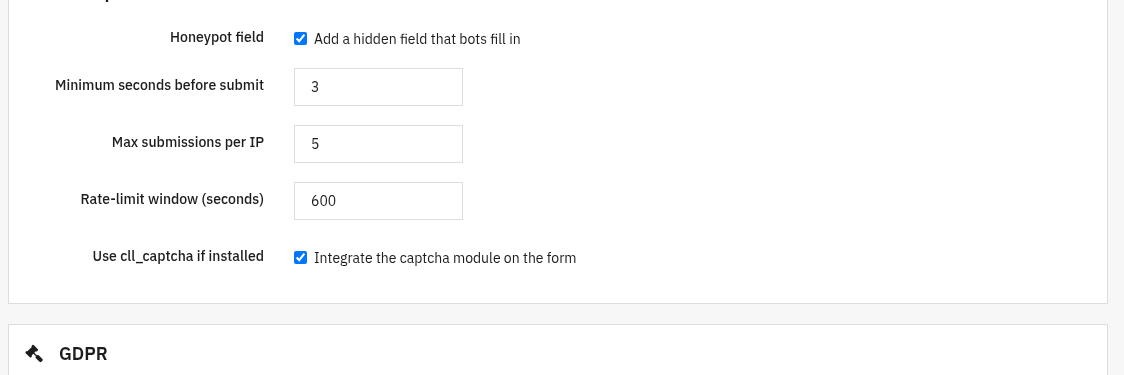
Stop bots and abuse before a message ever reaches your inbox.
- Honeypot field: adds a hidden field that bots fill in; real visitors never see it.
- Minimum seconds before submit: rejects forms sent faster than a human possibly could.
- Max submissions per IP: caps how many messages a single IP can send.
- Rate-limit window (seconds): the time window over which that cap is counted.
- Use cll_captcha if installed: integrates the captcha module on the form when present.
GDPR GDPR
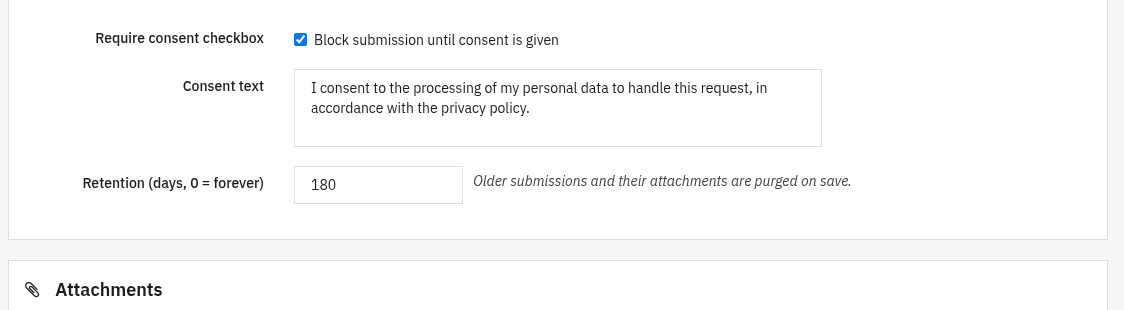
Collect consent and keep submissions only as long as you need.
- Require consent checkbox: blocks submission until the visitor gives consent.
- Consent text: the wording shown next to the checkbox; add a link to your privacy policy here.
- Retention (days, 0 = forever): older submissions and their attachments are purged automatically on save.
Attachments
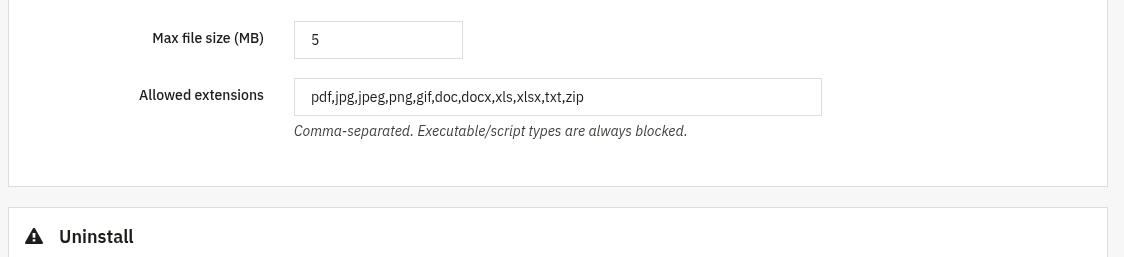
Allow visitors to attach files, within safe limits.
- Max file size (MB): the largest single upload accepted.
- Allowed extensions: comma-separated list of accepted file types. Executable/script types are always blocked.
3. Check that it works
- Open a contact form on the front office, fill it in and submit a test message, you should see the success message.
- Confirm the routing email arrives at the recipient (or fallback inbox) you configured.
- If the form has an autoresponder, confirm the confirmation email reaches the sender.
- Open Submissions in the back office and confirm the test message is archived there.
- Trigger the honeypot (fill the hidden field with a script or submit instantly) and confirm the submission is rejected.
4. FAQ
Can I have more than one form?
Yes. Create as many forms as you need on the Forms tab, each with its own fields, recipient and routing.
How does department routing work?
A routing field (for example a department dropdown) maps each choice to an email address, so messages reach the right person automatically. If no rule matches, the form recipient, or the fallback inbox, is used.
Where are received messages stored?
In the Submissions archive in the back office, where you can filter, change status, download attachments and export to CSV. Retention purges old entries automatically.
Do I need to edit my theme?
No. The forms work through standard hooks and are compatible with any theme.