
Quote Requests - B2B quotes & hide prices. Quote Requests lets customers ask for a quote instead of buying right away. You can optionally hide prices per group, category or product, manage incoming requests from a back-office quote manager with custom prices, validity, PDF and email, and let the customer accept a quote to turn it into an order.
Quote Requests lets customers ask for a quote instead of buying right away. You can optionally hide prices per group, category or product, manage incoming requests from a back-office quote manager with custom prices, validity, PDF and email, and let the customer accept a quote to turn it into an order.
1. Installation
- In the back office go to Modules → Module Manager → Upload a module and select the module ZIP.
- Once installed, click Configure to open the setup wizard.
.local, .test, localhost) are always allowed. When a new version is available it is shown right inside the module.2. Configuration: step by step
The module has three tabs: Quotes (the manager where every request lands, with per-line agreed prices, validity, PDF and email), New quote (create one for a customer by id), and Settings. Everything below lives under the Settings tab.
Settings
The Settings tab controls where the quote button appears, whether prices are hidden, who is allowed to request quotes, and how issued quotes behave. Start with the Quote button and scope groups.
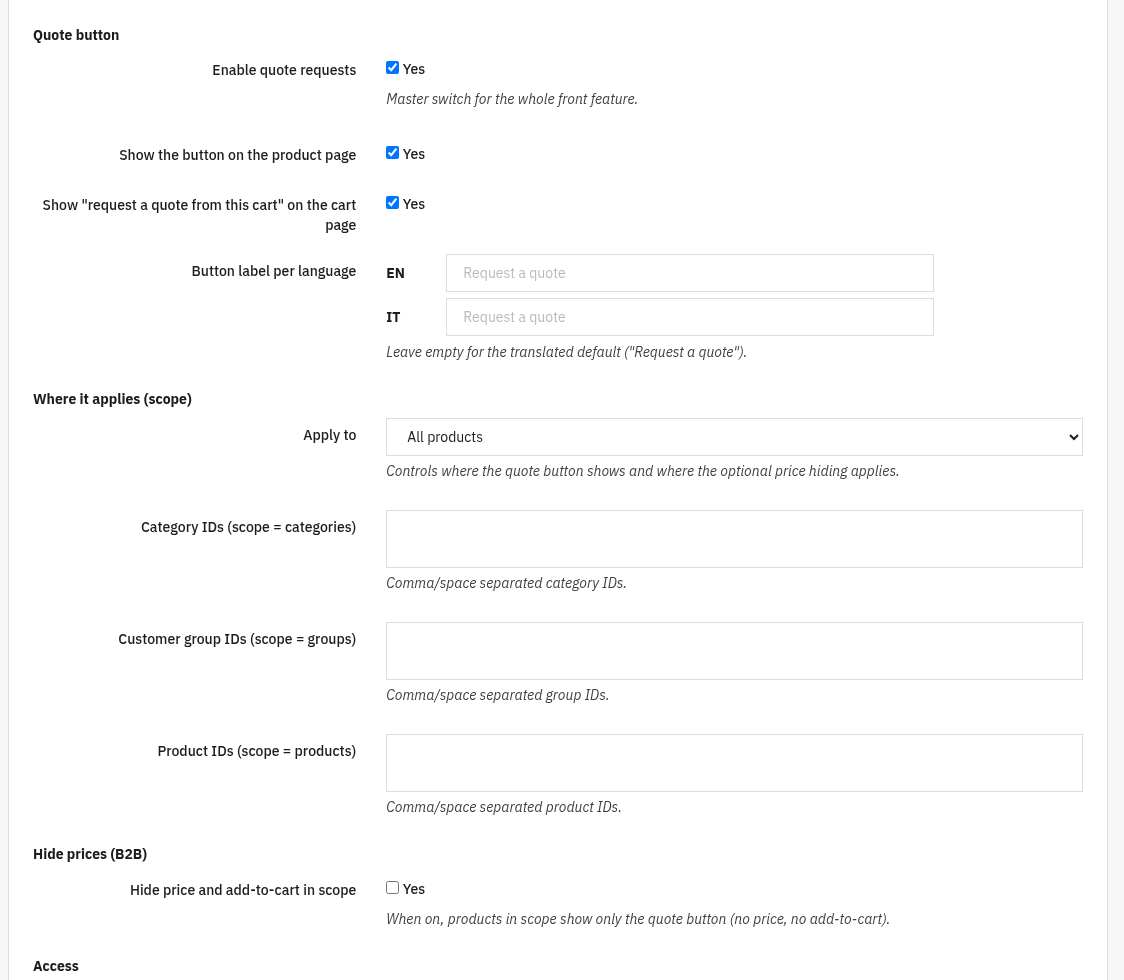
- Enable quote requests: the master switch for the whole front feature.
- Show the button on the product page: add the quote button to product pages.
- Show "request a quote from this cart" on the cart page: let customers turn a whole cart into a quote request.
- Button label per language: set the wording per language; leave empty for the translated default ("Request a quote").
- Apply to (scope): choose All products, Selected categories, Selected customer groups or Selected products. This controls where the button shows and where optional price hiding applies.
- Category / Customer group / Product IDs: comma or space separated IDs used by the matching scope.
The lower part of the form covers price hiding, access control, the behaviour of issued quotes and data handling.
- Hide price and add-to-cart in scope: when on, products in scope show only the quote button (no price, no add-to-cart), ideal for B2B catalogues.
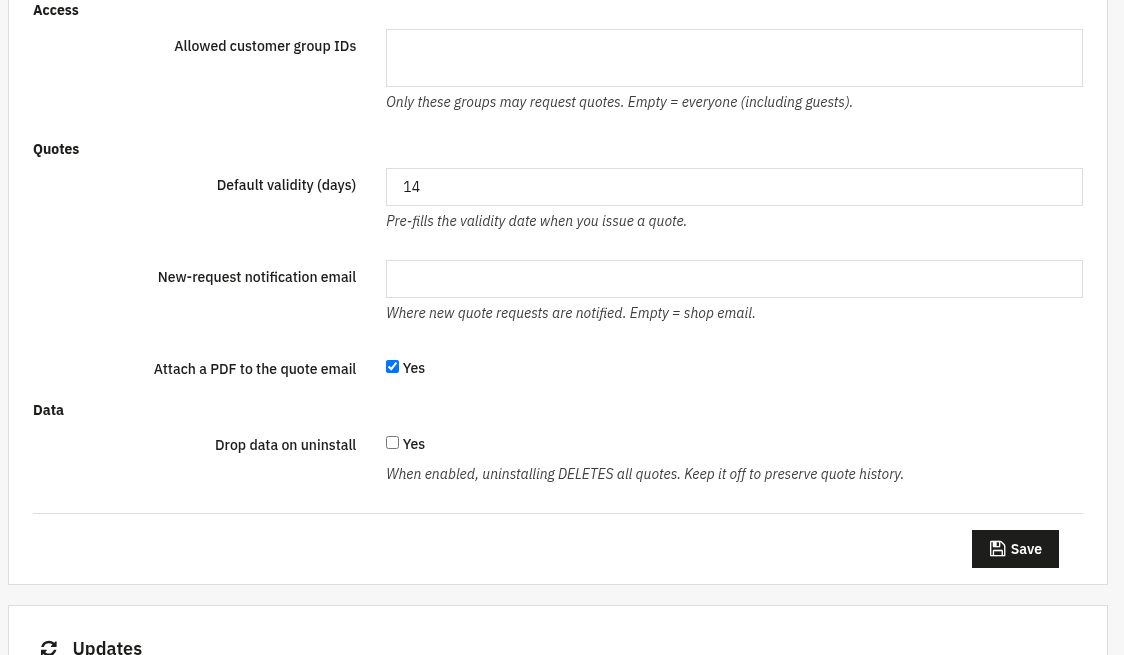
- Allowed customer group IDs: only these groups may request quotes; leave empty to allow everyone, including guests.
- Default validity (days): pre-fills the validity date when you issue a quote.
- New-request notification email: where new quote requests are notified; empty = shop email.
- Attach a PDF to the quote email: include a PDF of the quote when you send it.
- Drop data on uninstall: when enabled, uninstalling deletes all quotes. Keep it off to preserve history.
3. Check that it works
- Open a product within your chosen scope on the front office, the quote button should appear (and, if price hiding is on, the price and add-to-cart should be hidden).
- Submit a quote request from the shop, it should land under the Quotes tab and trigger a notification email.
- Open the quote, set agreed prices and a validity date, then use Send to customer: check the email (and the PDF if enabled) arrives.
- As a logged-in customer, accept the quote (or use Build cart with agreed prices in the back office) and confirm an order is created at the agreed prices.
4. FAQ
Can I hide prices only for some customers?
Yes. Set the scope to Selected customer groups (or categories/products) and turn on Hide price and add-to-cart in scope.
Can guests request a quote?
Yes, if you leave Allowed customer group IDs empty. Note that only registered customers can accept a quote online.
Do I need to edit my theme?
No. Quote Requests works through standard hooks and is compatible with any theme.
How does a quote become an order?
The customer accepts the quote, or you use Build cart with agreed prices in the back office to create a cart at the negotiated prices.