
Two-Factor Authentication (2FA / TOTP). Two-Factor Authentication adds TOTP one-time codes (Google Authenticator, Authy, Microsoft Authenticator) to the back office and the customer account: QR enrollment, encrypted secrets at rest, single-use backup recovery codes and anti-bruteforce lockout. It is fully self-contained, no external service, no network call, no extra library.
Two-Factor Authentication adds TOTP one-time codes (Google Authenticator, Authy, Microsoft Authenticator) to the back office and the customer account: QR enrollment, encrypted secrets at rest, single-use backup recovery codes and anti-bruteforce lockout. It is fully self-contained, no external service, no network call, no extra library.
1. Installation
- In the back office go to Modules → Module Manager → Upload a module and select the module ZIP.
- Once installed, click Configure to open the setup wizard.
.local, .test, localhost) are always allowed. When a new version is available it is shown right inside the module.2. Configuration: step by step
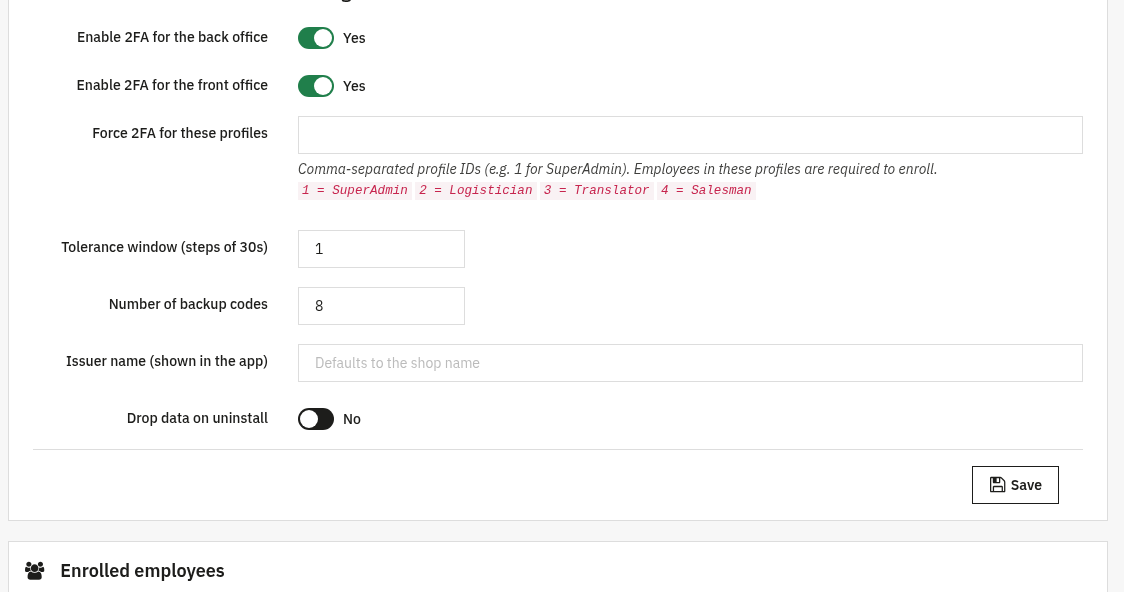
The Configure screen has one settings panel followed by two enrollment lists. Set the policy first, then use the lists to see who is protected and reset anyone who is locked out.
Two-Factor Authentication - Settings master switch
This panel defines where 2FA applies and how strictly. Save with the Save button at the bottom.
- Enable 2FA for the back office: turns on the second factor for employees signing in to the admin. When on, every back-office request is blocked until the code is verified.
- Enable 2FA for the front office: turns on the second factor for customers in their account area.
- Force 2FA for these profiles: comma-separated profile IDs (e.g.
1for SuperAdmin). Employees in these profiles are required to enroll; the form lists each profile ID and name for reference. - Tolerance window (steps of 30s): how many 30-second steps of clock drift to accept (0–5). Higher values are more forgiving if a phone clock is slightly off; lower is stricter.
- Number of backup codes: how many single-use recovery codes are generated at enrollment (4–20, default 8). Each code works once if the authenticator app is unavailable.
- Issuer name (shown in the app): the label that appears next to the account in the authenticator app. Leave blank to use the shop name.
- Drop data on uninstall: if Yes, all enrollment secrets and backup codes are deleted when the module is uninstalled.
Enrolled employees
Lists every back-office employee who has set up 2FA, with ID, name, email, status (Active or Pending) and last-updated date.
- Reset 2FA: removes that employee's secret and clears their failed-attempt count, so they can enroll again from scratch (use this when someone loses their phone or is locked out).
- If no one has enrolled yet, the panel simply says so.

Enrolled customers
The same list for front-office customers who have enabled 2FA on their account: ID, name, email, status and last update.
- Reset 2FA: clears a customer's enrollment and failure count so they can re-enroll, handy for support requests when a customer can no longer log in.
- Empty until at least one customer enrolls.

3. Check that it works
- Enable 2FA for the back office, then log out and log back in: you should be prompted to scan a QR code and enter a 6-digit code before reaching the dashboard.
- After enrolling, confirm your account appears in the Enrolled employees list with status Active.
- Log out, log back in, and instead of the app code enter one of your backup codes, it should let you in once and then be consumed.
- From the back office, click Reset 2FA on a test account and confirm it is removed from the list and prompted to enroll again on next login.
4. FAQ
Which authenticator apps are supported?
Any standard TOTP (RFC 6238) app, Google Authenticator, Authy, Microsoft Authenticator and similar all work.
What if an employee loses their phone?
They can use a backup code, or an admin can click Reset 2FA in the Enrolled list to let them enroll a new device.
Does it need an internet connection or external service?
No. Codes are generated and verified locally; secrets are encrypted at rest. There is no network call and no third-party dependency.
Is it safe against brute force?
Yes. Repeated wrong codes trigger an anti-bruteforce lockout, and the tolerance window is configurable to balance security and convenience.